Google Analytics lead tracking is the process of recording when real people take meaningful actions on your website, such as submitting a form or requesting a quote.
If you’ve ever looked at your dashboard and felt a pang of anxiety because your lead numbers don’t match your actual email inbox, you aren’t alone. It’s frustrating to see conflicting data, especially when you need to report ROI to a client or your boss.
In this guide, I’ll show you exactly how to track real leads, explain why the numbers sometimes drift, and give you a simple way to view your results without the headache.
What Counts as a Lead in Google Analytics (GA4)
In GA4, a lead is simply a standard event that you mark as a “Key Event.” This tells Google that the action is important to your business.
However, not every interaction should count as a lead. A simple newsletter signup is very different from a high-value quote request.
To distinguish between the two, GA4 uses a specific tag called generate_lead.
Using this specific event name helps you separate casual browsers from serious prospects. It ensures you are tracking actual business intent rather than just website activity.
Why Your Lead Numbers Don’t Always Match
Lead numbers often differ between GA4 and ad platforms because they assign credit differently. This is usually an attribution issue, not a broken tracking setup.
Ad platforms often count “view-through” conversions where a user sees an ad but never clicks it. Google Analytics only tracks the actual visit to your site.
Because of this difference, ad platforms often claim more conversions than GA4.
You may also see leads listed as “Unassigned” in your reports. This usually happens when UTM tags are missing or broken.
To fix this, use a URL builder to format your campaign links correctly.
Finally, user privacy tools can sometimes strip data as people switch between apps. GA4 tracks the lead, but it might not know exactly where it came from.
How to Set Up GA4 Lead Tracking
You don’t need a developer degree to get this working, but you do need to pick the right strategy for your site.
There are essentially two ways to catch these leads: using a specific “Thank You” page or tracking the button click itself.
Method 1: Track Leads With a Thank You Page
If your form redirects to a confirmation page, this is the easiest way to track leads. You do not need complex code to tell GA4 that a specific URL equals success.
This method is highly reliable. It confirms that a user actually submitted the form rather than just clicking a button by mistake.
Here is how to set this up in GA4:
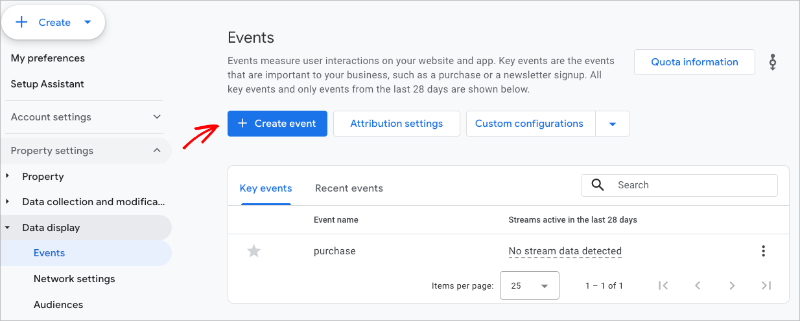
- Go to Admin: Click on Events under the Data Display menu.
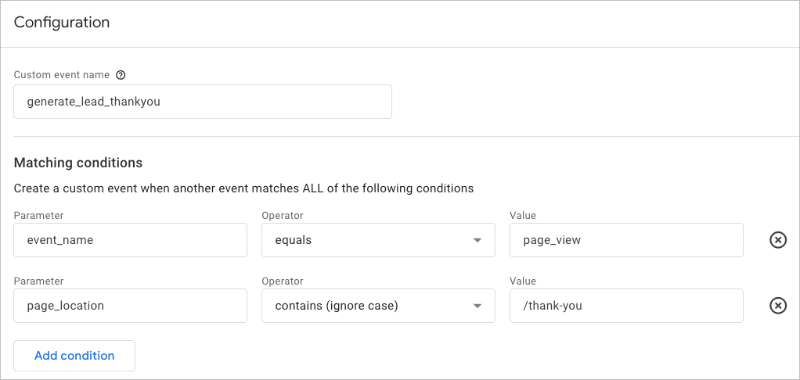
- Create Event: Click Create Event and name it
generate_lead_thankyou. - Set the Rules: Set the first condition so
event_nameequalspage_view. - Add the URL: Click “Add Condition” and set
page_locationcontains/thank-you. - Mark as Key Event: Save the event. Go to the Key Events tab and toggle it to “On”.
For more information, see our guide on what GA4 Events are.
Method 2: Track Leads Without a Thank You Page
For popups, embedded forms, or AJAX submissions, you need to track the action itself. Not every form sends users to a new page, especially modern ones that just show a “Success!” message inline.
In these cases, you can’t rely on a URL change. Instead, you need to “listen” for the form submission event that happens in the background.
The most reliable method is using a form builder that often handles this automatically. If you are not using a form builder, you have to do this manually.
You will need to use the “Enhanced Measurement” feature or Google Tag Manager to track form submissions.
Here is the simplified workflow for capturing these events:
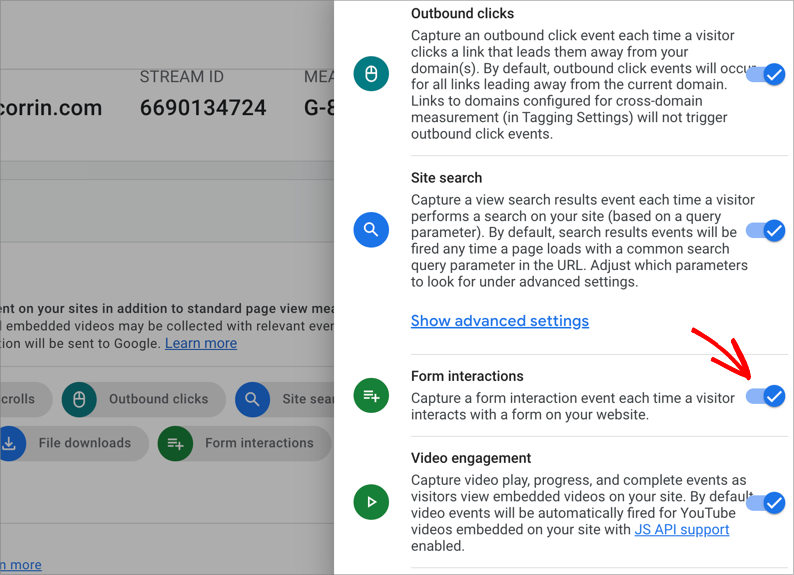
- Enable Enhanced Measurement: Go to Admin » Data Streams and click on your web stream. Make sure the toggle for “Form interactions” is turned on.
- Check the DebugView: Open your website in a new tab and submit a test form. In GA4, go to Admin » DebugView to see if an event named
form_submitappears. - Create the Key Event: If
form_submitis firing, go back to Events » Create Event. - Refine the Trigger: Create a new event named
generate_leadwhereevent_nameequalsform_submitANDpage_locationequals the page your form is on. - Save and Verify: Mark this new event as a Key Event just like in Method 1.
For a full guide, see our walkthrough on how to track from submissions in GA4.
How to Actually See Your Lead Data in GA4
Collecting lead data is only half the job; you also need a practical way to view and understand it. If you can’t find the numbers quickly, you likely won’t use them to make better decisions.
To see your new data, follow these simple steps:
- Open the Report: Go to Reports » Acquisition » Traffic Acquisition in the left-hand menu.
- Find the Column: Scroll to the right of the table until you see the “Key Events” column.
- Select Your Event: Click the dropdown arrow in that column header to select your new
generate_leadevent.
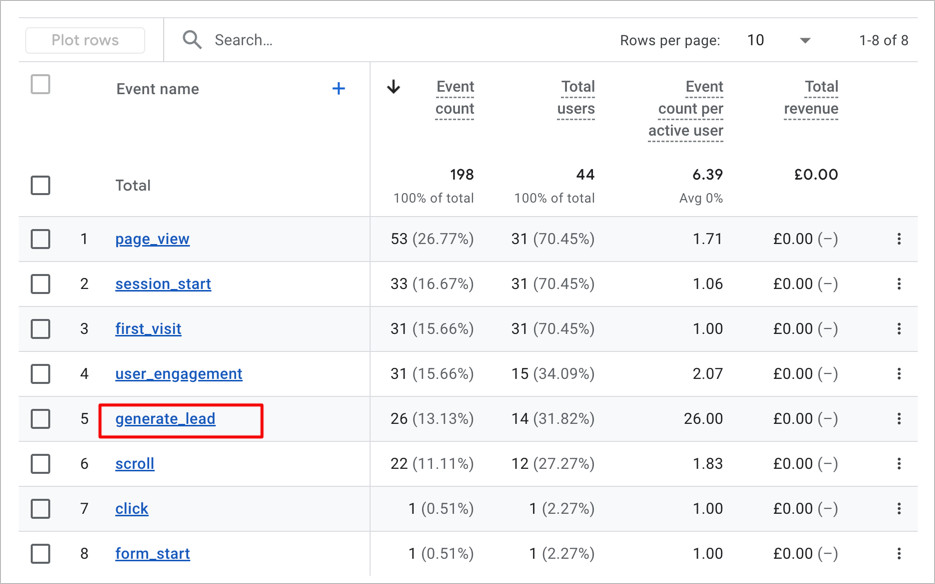
While these standard reports work, they are often cluttered with metrics you simply don’t need. You could try building “Explorations,” but they are clunky to set up and difficult to share with clients.
A Simpler Way to View Lead Performance
This is exactly why we built OnePageGA—to strip away the noise and focus on what matters.
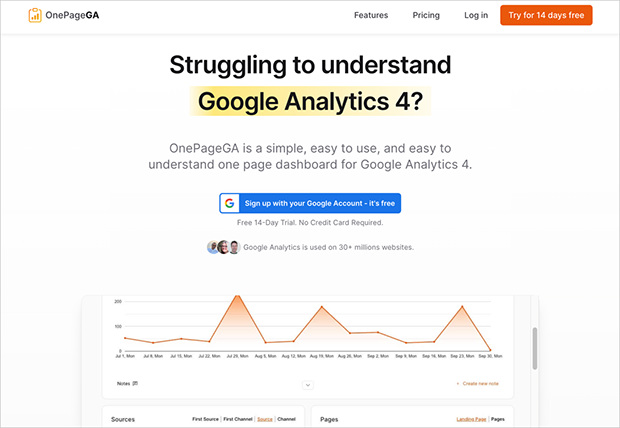
OnePageGA is a simple, single-page analytics dashboard that connects directly to your Google Analytics account.
Instead of digging through five layers of menus, OnePageGA pulls your specific lead metrics onto a single screen so you don’t have to hunt for them.
It creates simple Google Analytics reports that show you exactly how many leads you got and where they came from in seconds.
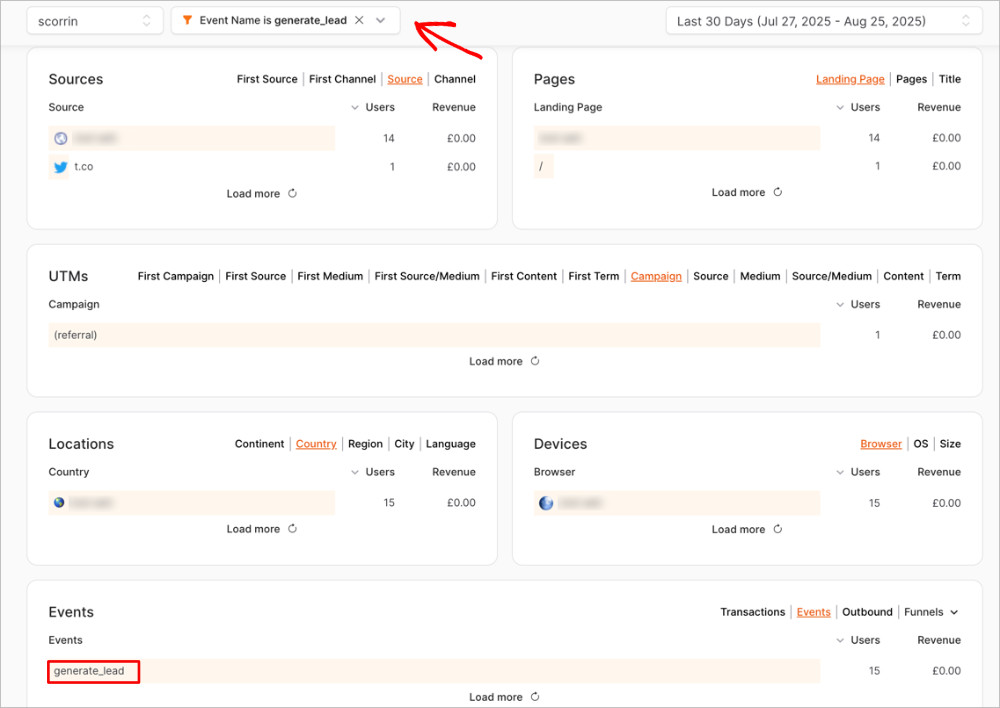
It answers the only question your clients really care about: “How many leads did we get today?” without the headache of complex data tables.
Bonus: How to Get More Leads to Track
Now that your scoreboard is working, you need to put some points on the board. Tracking a conversion rate of 0% isn’t very exciting, so here are three quick ways to increase your lead volume immediately.
1. Reduce the Friction
Every extra field you ask for is a hurdle your user has to jump over. If you don’t absolutely need their phone number or job title, cut it.
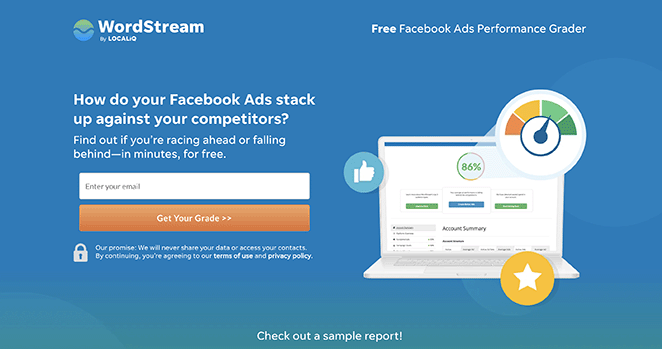
Studies consistently show that removing just one form field can increase conversion rates by up to 26%. Keep it to name and email whenever possible to get the conversation started.
2. Add Trust Signals Near the Button
Anxiety kills conversions. When a user hovers over that “Submit” button, they are wondering if you’re going to spam them.
Place a small line of text below the button like “No spam, unsubscribe anytime” or add a trusted logo right next to the form. These micro-assurances reduce hesitation.
3. Use Dedicated Landing Pages
Sending paid traffic to your homepage is usually a waste of money. Homepages have too many distractions and menu links.
Instead, send traffic to a dedicated landing page that has one job: getting that lead. By removing the navigation menu and focusing the copy on a single offer, you’ll see your generate_lead events in GA4 skyrocket.

FAQs About Google Analytics Lead Tracking
Why doesn’t my GA4 lead count match my ad platform?
Ad platforms are generous with credit. They often count a lead if someone saw your ad, didn’t click, but converted later (view-through).
GA4 is stricter with its attribution. It usually only counts the lead if the user actually clicked through to your site during the session.
Can I see lead names or email addresses in Google Analytics?
No, absolutely not. Google has a strict policy against collecting Personally Identifiable Information (PII).
If you try to pass email addresses or names into GA4, they might suspend your account. Always keep personal data in your CRM, not your analytics tool.
What’s the difference between form_submit and generate_lead?
form_submit is a technical event that simply says “a form button was clicked.” generate_lead is a specific Google event that signals “a business goal was met.”
You should map the technical form_submit event to generate_lead. This helps GA4 understand that this specific action has real monetary value to you.
How long does GA4 attribution last?
For Key Events (conversions), GA4 uses a lookback window of up to 90 days. This is great for businesses with longer sales cycles.
This means if someone clicks an ad today but comes back directly to convert two months later, GA4 can still credit that original ad click.
Once your lead tracking is set up correctly, clear reporting is what makes the data actually useful. You shouldn’t have to fight your analytics tool just to answer a simple question about your business growth.
By using a simple setup and an easy-to-read dashboard, you can finally start trusting your numbers again. If you’re tired of digging through complex menus, give OnePageGA a look to turn that data into instant clarity.
You may also find the following Google Analytics guides helpful:
- How to Track File Downloads in Google Analytics 4
- What Is a Conversion in Google Analytics
- How to Measure Time on Page in Google Analytics 4
- How to Find Average Session Duration in Google Analytics
If you have questions or want to join the conversation, you can also find us on X and Facebook.